
Get started in 6 steps
Here is what to do: add the extension, invite your team, connect a sheet and copy your first listing.
Step 1 / 6
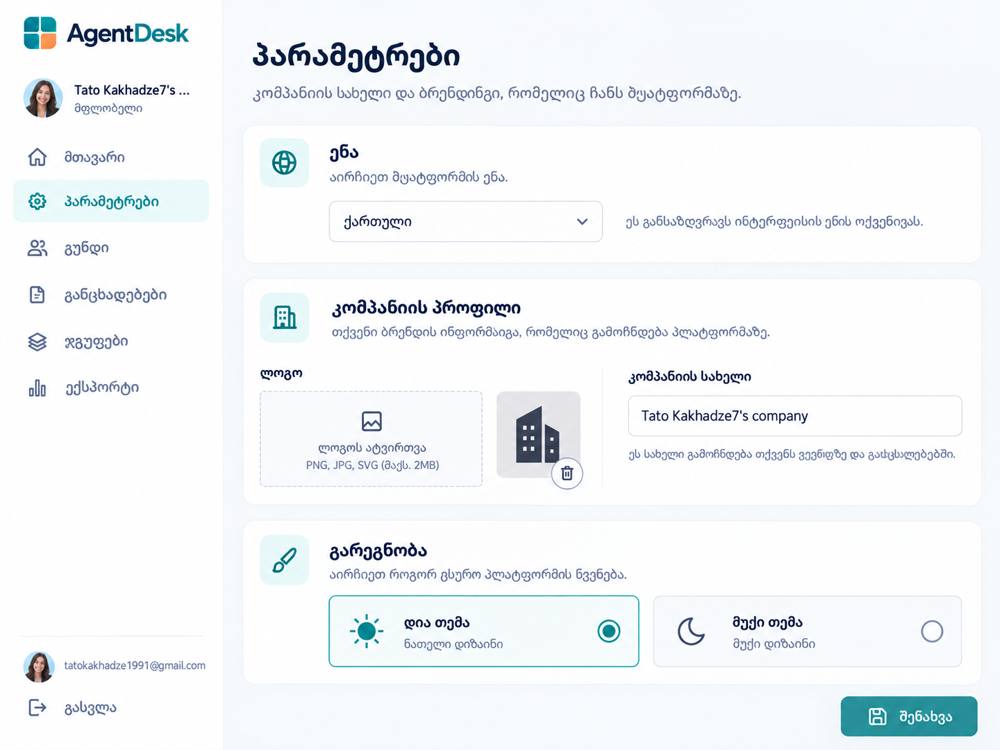
Install and set up
Get going in minutes: add the extension and make it your company's.
- Add AgentDesk to Chrome and sign in.
- Open Settings and choose Georgian, English or Russian.
- Enter your company name and upload a logo (PNG, JPG or SVG).
- Click Save.
Tip: Your company name and logo will appear in shared content.
Step 2 / 6
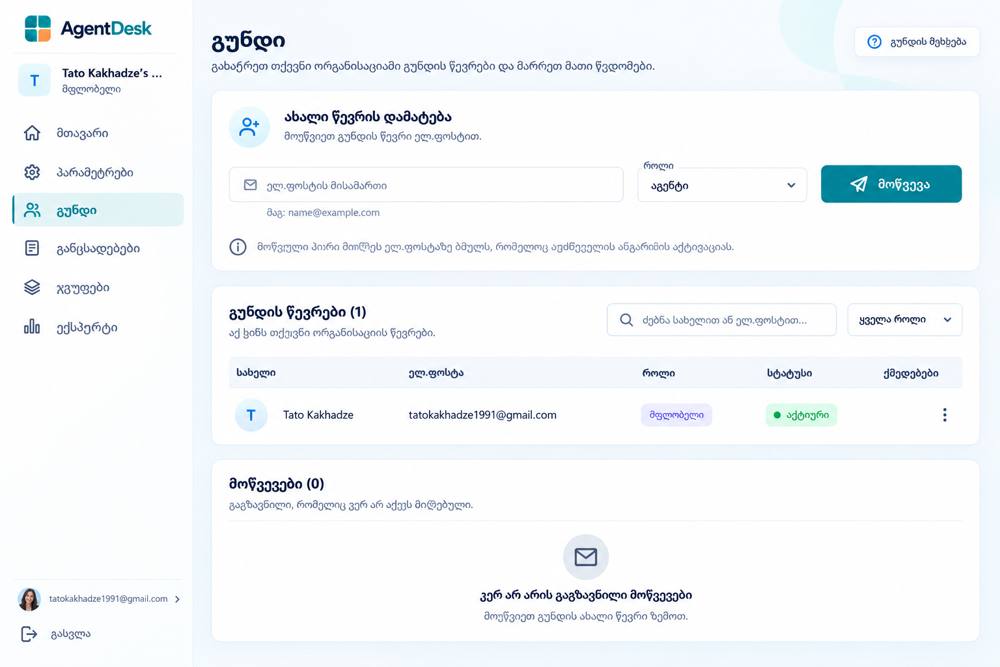
Invite your team
Before you start copying, add your colleagues so everyone sees the same list.
- Open Team.
- Enter a colleague's email and choose a role.
- Click Invite.
- Your colleague gets a link to activate their account.
Tip: Sent invitations are shown at the bottom of the page until they are accepted.
Step 3 / 6
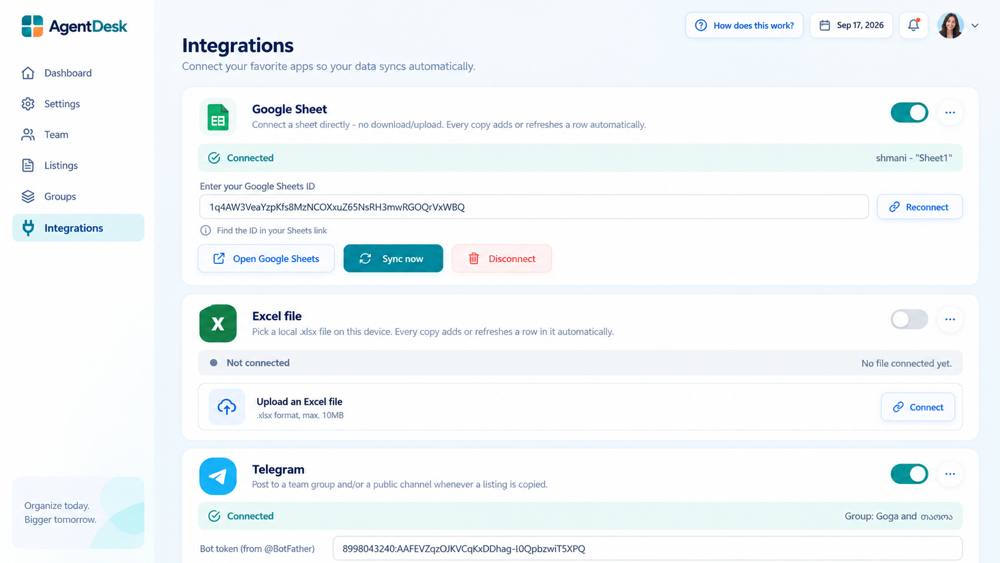
Connect a sheet and Telegram
Choose where each copied listing should go.
- Open Integrations.
- Google Sheets: paste the sheet ID and click Connect.
- Excel: choose an .xlsx file on your device.
- Telegram: paste the bot token from @BotFather and choose a group or channel.
Tip: After that, every copy updates your sheet automatically.
Step 4 / 6
Copy a listing
Now the main part: open a listing and transfer it in one step.
- Open a listing on myhome.ge or ss.ge.
- Open the AgentDesk card Copy this listing.
- If needed, enter a new price.
- Click MYHOME, BOTH or SS.
- You will instantly see the message Copied!.
Tip: Copying includes the text, photos and property details.
Try it here, this is a live example:
Copy this listing
Data to share on another platform.
Copying includes: text, photos and property details.
Copied!
Step 5 / 6
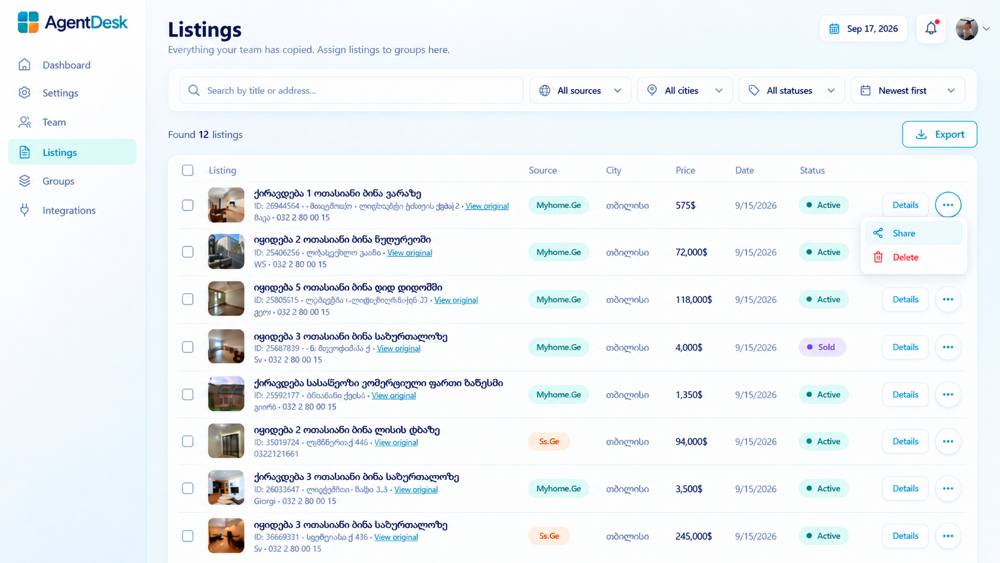
Manage listings
All copied listings are waiting for you in one list.
- Open Listings.
- Search by title or address.
- Filter by site, city and status.
- If needed, click Export.
Tip: The list shows the status: active or sold.
Step 6 / 6
Organize into groups
Organize listings by client, site or campaign.
- Open Groups.
- Enter a group name and click Create.
- Add your team members.
- In Listings assign a listing to a group.
Tip: The dashboard shows how many listings you copied and from which city.
Choose a plan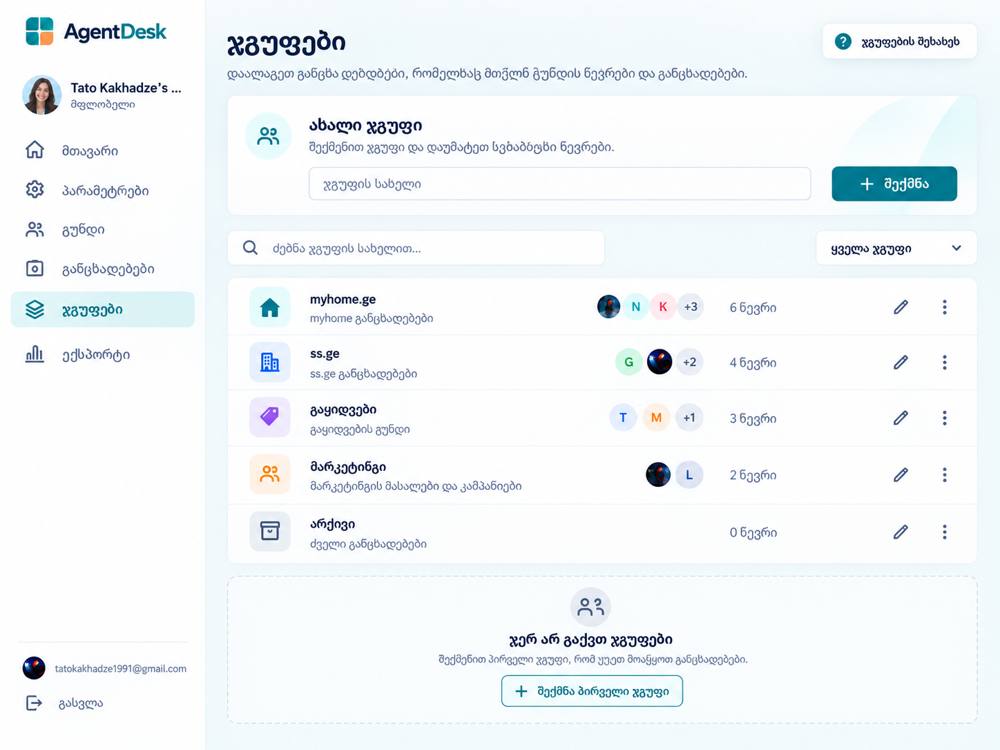
Ready to get started?
Choose a plan and start today. Team growing? Just add agents.